





在 Proxmox VE (PVE) 中使用 CloudInit 自动化部署 Windows 虚拟机,可以极大地提升运维效率。然而,在较新的 Windows 系统(如 Server 2025)中,可能会遇到初始化完成后虚拟光驱无法自动弹出的问题。本文将提供一个详尽的解决方案,帮助你完美配置 PVE + Windows + CloudBaseInit 环境。
主要参考文章:♪(^∇^*) 欢迎肥来!PVE + CloudBaseInit/CloudInit + Windows 全宇宙最全最完善解决方案 | TCP’s Blog(本文在其基础上进行了优化和补充,以解决新系统下的特定问题)
一、前提条件
在开始之前,请确保你的 Proxmox VE 版本 大于 8.2.4。较新版本的 PVE 对 Windows CloudInit 的支持和兼容性更好。
二、创建 PVE 虚拟机
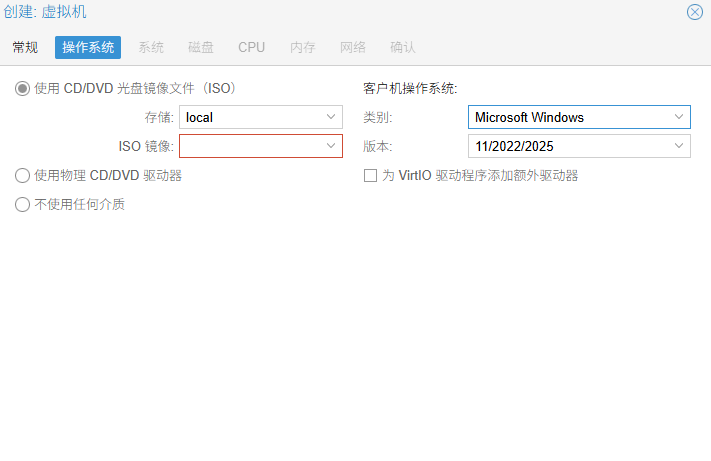
在 PVE 中创建虚拟机时,一个关键步骤是在“操作系统”页面中,务必选择 "Windows" 作为类型。这能确保 PVE 为虚拟机提供正确的硬件模拟和驱动支持,是 CloudInit 正常工作的基础。
三、安装与配置 CloudBaseInit
接下来,我们需要在 Windows 虚拟机内部进行操作。
1. 下载并安装 CloudBaseInit
从腾讯云官方文档下载适用于 Windows 的 CloudBase-Init 安装包:云服务器 Windows 操作系统安装 Cloudbase-Init。下载后,以管理员身份运行安装程序,并按照默认设置完成安装。
2. 修改主配置文件
安装完成后,打开配置文件 C:\Program Files\Cloudbase Solutions\Cloudbase-Init\conf\cloudbase-init.conf,将其中的所有内容替换为以下配置。此配置启用了密码注入、主机名设置、磁盘扩容等核心功能,并指定了从 PVE 的 ConfigDrive 读取元数据。
[DEFAULT]
username=administrator
groups=Administrators
inject_user_password=true
first_logon_behaviour=no
rename_admin_user=true
bsdtar_path=C:\Program Files\Cloudbase Solutions\Cloudbase-Init\bin\bsdtar.exe
mtools_path=C:\Program Files\Cloudbase Solutions\Cloudbase-Init\bin\
verbose=true
debug=true
log_dir=C:\Program Files\Cloudbase Solutions\Cloudbase-Init\log\
log_file=cloudbase-init.log
default_log_levels=comtypes=INFO,suds=INFO,iso8601=WARN,requests=WARN
mtu_use_dhcp_config=false
ntp_use_dhcp_config=false
local_scripts_path=C:\Program Files\Cloudbase Solutions\Cloudbase-Init\LocalScripts\
check_latest_version=false
metadata_services=cloudbaseinit.metadata.services.configdrive.ConfigDriveService
plugins=cloudbaseinit.plugins.common.networkconfig.NetworkConfigPlugin,cloudbaseinit.plugins.windows.extendvolumes.ExtendVolumesPlugin,cloudbaseinit.plugins.common.setuserpassword.SetUserPasswordPlugin,cloudbaseinit.plugins.common.sethostname.SetHostNamePlugin,cloudbaseinit.plugins.windows.createuser.CreateUserPlugin
[config_drive]
cdrom=true
四、修复 Server 2025 光驱弹出问题(关键步骤)
在 Windows Server 2025 等较新系统中,CloudBaseInit 自带的弹出 CD-ROM 的逻辑可能会失效,导致 CloudInit 任务完成后,用于传递配置的虚拟光驱依然挂载在系统中。
为了解决这个问题,我们需要替换其核心驱动检测文件。请备份并替换以下文件:
C:\Program Files\Cloudbase Solutions\Cloudbase-Init\Python\Lib\site-packages\cloudbaseinit\metadata\services\configdrive.py将文件内容完整替换为下面的代码。这段优化后的代码增强了驱动器盘符的检测逻辑,并提供了多种兼容性更强的弹出方法,能有效修复此问题。
# Copyright 2020 Cloudbase Solutions Srl
#
#    Licensed under the Apache License, Version 2.0 (the "License"); you may
#    not use this file except in compliance with the License. You may obtain
#    a copy of the License at
#
#         http://www.apache.org/licenses/LICENSE-2.0
#
#    Unless required by applicable law or agreed to in writing, software
#    distributed under the License is distributed on an "AS IS" BASIS, WITHOUT
#    WARRANTIES OR CONDITIONS OF ANY KIND, either express or implied. See the
#    License for the specific language governing permissions and limitations
#    under the License.

from oslo_log import log as oslo_logging
from cloudbaseinit import conf as cloudbaseinit_conf
from cloudbaseinit.metadata.services import baseconfigdrive
from cloudbaseinit.metadata.services import baseopenstackservice
import os
import shutil
import ctypes

CONF = cloudbaseinit_conf.CONF
LOG = oslo_logging.getLogger(__name__)


class ConfigDriveService(baseconfigdrive.BaseConfigDriveService,
                         baseopenstackservice.BaseOpenStackService):

    def __init__(self):
        super(ConfigDriveService, self).__init__(
            'config-2', 'openstack\\latest\\meta_data.json')

    def cleanup(self):
        LOG.debug('Deleting metadata folder: %r', self._mgr.target_path)
        shutil.rmtree(self._mgr.target_path, ignore_errors=True)
        self._metadata_path = None

        # 动态获取 config-2 驱动器的盘符
        drive_letter = self._get_config_drive_letter()

        if drive_letter:
            LOG.debug('Found config-2 drive at: %s', drive_letter)
            success = self._eject_drive(drive_letter)
            if success:
                LOG.info('Successfully ejected config-2 drive: %s', drive_letter)
            else:
                LOG.warning('Failed to eject config-2 drive: %s', drive_letter)
        else:
            LOG.warning('No config-2 drive found to eject')

    def _get_config_drive_letter(self):
        """动态获取 config-2 驱动器的盘符,优先使用现代方法,兼容旧系统"""

        # 方法1:现代 PowerShell CIM 方法 (Windows Server 2016+)
        try:
            LOG.debug('Attempting to find config-2 drive using PowerShell CIM')
            ps_cmd = 'powershell "Get-CimInstance -ClassName Win32_LogicalDisk | Where-Object {$_.VolumeName -eq \'config-2\'} | Select-Object -ExpandProperty DeviceID"'
            result = os.popen(ps_cmd).read().strip()

            if result and ':' in result:
                LOG.debug('Found drive using PowerShell CIM: %s', result)
                return result
        except Exception as e:
            LOG.debug('PowerShell CIM method failed: %s', e)

        # 方法2:兼容旧系统的 wmic 方法 (Windows Server 2012/2019)
        try:
            LOG.debug('Attempting to find config-2 drive using wmic (legacy)')
            result = os.popen('wmic logicaldisk where VolumeName="config-2" get Caption | findstr /I ":"').read().strip()

            if result and ':' in result:
                LOG.debug('Found drive using wmic: %s', result)
                return result
        except Exception as e:
            LOG.debug('WMIC method failed: %s', e)

        # 方法3:PowerShell WMI 方法 (中等兼容性)
        try:
            LOG.debug('Attempting to find config-2 drive using PowerShell WMI')
            ps_cmd = 'powershell "Get-WmiObject -Class Win32_LogicalDisk | Where-Object {$_.VolumeName -eq \'config-2\'} | Select-Object -ExpandProperty DeviceID"'
            result = os.popen(ps_cmd).read().strip()

            if result and ':' in result:
                LOG.debug('Found drive using PowerShell WMI: %s', result)
                return result
        except Exception as e:
            LOG.debug('PowerShell WMI method failed: %s', e)

        LOG.warning('All methods failed to find config-2 drive')
        return None

    def _eject_drive(self, drive_letter):
        """弹出指定的驱动器,优先使用现代方法,兼容旧系统"""

        # 方法1:PowerShell Shell.Application(已验证可行,Windows Server 2016+)
        try:
            LOG.debug('Attempting PowerShell Shell.Application eject for: %s', drive_letter)
            ps_cmd = f'powershell "(New-Object -comObject Shell.Application).Namespace(17).ParseName(\'{drive_letter}\').InvokeVerb(\'Eject\')"'
            result = os.system(ps_cmd)

            if result == 0:
                LOG.info('Successfully ejected %s using PowerShell Shell.Application', drive_letter)
                return True
            else:
                LOG.debug('PowerShell Shell.Application eject failed with code: %d', result)
        except Exception as e:
            LOG.debug('PowerShell Shell.Application eject exception: %s', e)

        # 方法2:传统 MCI 命令(兼容旧系统,Windows Server 2012/2019)
        try:
            LOG.debug('Attempting MCI eject for: %s (legacy compatibility)', drive_letter)
            result1 = ctypes.windll.WINMM.mciSendStringW(f"open {drive_letter} type cdaudio alias d_drive", None, 0, None)
            result2 = ctypes.windll.WINMM.mciSendStringW("set d_drive door open", None, 0, None)
            result3 = ctypes.windll.WINMM.mciSendStringW("close d_drive", None, 0, None)

            LOG.debug('MCI eject results: open=%d, eject=%d, close=%d', result1, result2, result3)

            if result1 == 0 and result2 == 0:
                LOG.info('Successfully ejected %s using MCI (legacy method)', drive_letter)
                return True
            else:
                LOG.debug('MCI eject failed: open=%d, eject=%d', result1, result2)
        except Exception as e:
            LOG.debug('MCI eject exception: %s', e)

        # 方法3:PowerShell WMI 卸载方法(中等兼容性)
        try:
            LOG.debug('Attempting PowerShell WMI dismount for: %s', drive_letter)
            ps_cmd = f'powershell "(Get-WmiObject -Class Win32_Volume | Where-Object {{$_.DriveLetter -eq \'{drive_letter}\'}}).Dismount($true, $false)"'
            result = os.system(ps_cmd)

            if result == 0:
                LOG.info('Successfully dismounted %s using PowerShell WMI', drive_letter)
                return True
            else:
                LOG.debug('PowerShell WMI dismount failed with code: %d', result)
        except Exception as e:
            LOG.debug('PowerShell WMI dismount exception: %s', e)

        LOG.error('All eject methods failed for drive: %s', drive_letter)
        LOG.info('Please manually eject the drive from Windows Explorer if needed')
        return False
五、总结
完成以上所有步骤后,将这台配置好的 Windows 虚拟机关机,并转换为 PVE 模板。现在,你就可以基于这个模板,快速创建出配置完整、初始化自动完成且无残留光驱问题的 Windows 虚拟机实例了。希望本指南能帮助你构建更高效、更自动化的虚拟化环境!